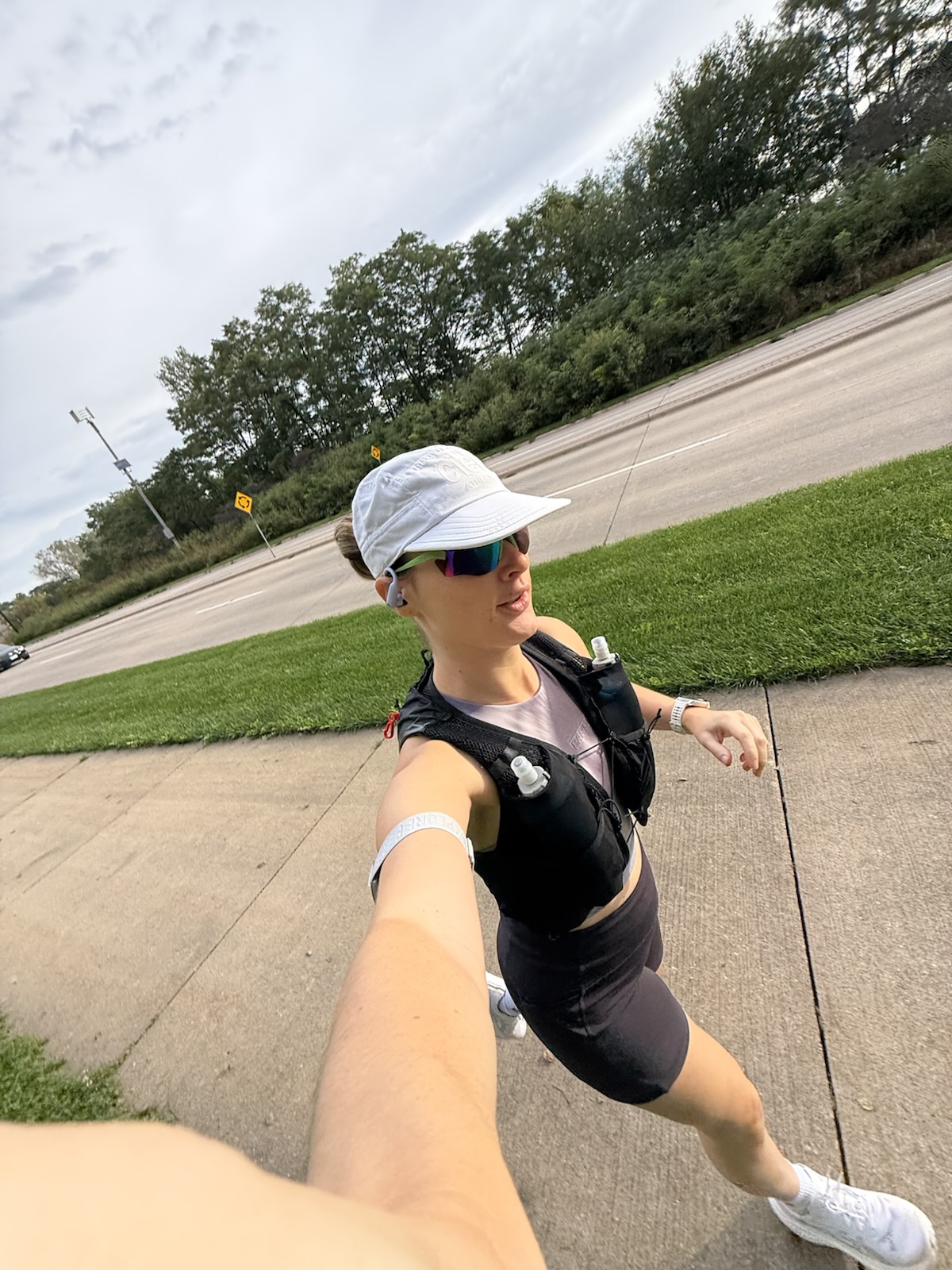
I bought my Coros Pace 3 in 2025 as a brand-new runner who could hardly run a 5K. A year and a half later, I’ve converted my Apple Watch husband, and now my runner friends are jealous of how often my watch gets new features.

At the time, I was a month into running, had just signed up for my first half marathon and knew almost nothing about running watches. I wanted something to help the new habit stick. The Pace 3 was the nicest watch my FSA would cover, and I could bundle it with the heart rate monitor. It seemed like a no-brainer.
A few training cycles later, I’m a huge fan (and no, this isn’t even remotely sponsored). It seems like every other week Coros adds or refines a feature I end up using all the time, and many of the ones in this post arrived through updates. The customer support is top-notch, too. When a discount code for a free watch band went up after I bought my watch, I DM’d them and they shipped me one for free.
So if you just got a Pace 3, Pace 4, Pace Pro, Apex or Vertix, here are my best Coros tips and tricks, including some hidden features, and how to set them up. Many of them made training for my first marathon a lot easier.
(FYI, the Pace 4 wasn’t out yet when I bought my Pace 3. It’s the newer and better version, so that’s the one I’d recommend in 2026, and it’s on my gift guide for runners.)
The 11 Coros features worth setting up, all free with no Coros subscription.
1. Build Coros Routes in Explore (and Let Your Watch Navigate)
I know what you’re thinking… um, it’s a GPS watch? Like, duh? But are you actually using it to its full potential? Explore is the route builder in the Coros app. You draw a route on a map, send it to your watch, and the watch guides you along it and buzzes if you go off course.

It makes planning long runs a breeze, especially when you need water or bathroom stops at certain miles. The map also tells trails and streets apart, so it’s easy to see where it’s safe to run.
This is the feature I use most. I used Explore every week of my marathon training block so I didn’t get sick of the same two out-and-back routes every Saturday morning. Runners are creatures of habit, but trust me, get out there and explore.
It’s also my favorite vacation trick. In a new city, I build a route past whatever I want to see, so I’m not stopping at every corner to check my phone.
Routes are easy to share, too. I built my long run routes in Iowa City in Explore. If you’re local and want something shorter, here are the best running routes in Iowa City.
Does the Coros Pace 3 have maps? Not full maps like your phone. You get a breadcrumb trail of your route, and the watch vibrates before every turn. If you want detailed trail maps, look at a model like the Apex Pro.
How to build a route in Coros
- Open the Coros app and tap Explore.
- Tap Create a Route, then tap points on the map. It follows roads and trails for you.
- Save it and send it to your watch.
- On your watch, before you start a run, scroll to Navigation and pick your route.
You can also import a GPX file from Strava, a race website or a friend.
2. Sync Your Runna Workouts to Your Coros Watch
I used Runna to train for my last two races. It’s no replacement for a running coach, but it gives you solid structure on a budget. The best part is that it connects directly to Coros, so every workout in your plan shows up on your watch automatically, with paces, intervals and rests already built in.
I followed a Runna plan for all 20 weeks of my marathon block, and this was the part I never had to think about. If I move a run because life happened, it re-syncs on its own.
On interval days, this is huge. My watch tells me when to speed up and when to recover, so I don’t have to memorize “6 x 800m at 7:40 with 90 seconds rest” and then forget it by rep two.
How to connect Runna to Coros
- In Runna, go to Profile → Connected apps and choose Coros.
- Log in to your Coros account and allow access.
- Your workouts show up in the Coros app and sync to your watch the next time it connects.
- On your watch, start a run like normal and an option to begin your planned workout will appear.
3. Plan Your Race Mile by Mile With Coros Pace Strategy
For me, one of the most stressful parts of the weeks before a big race is planning my pacing. Should I go out at goal pace? Negative split? How should I handle the hills? Pace Strategy builds a mile-by-mile plan from the race’s course file, adjusts for hills and puts it on your watch.

This is the one I wish more people knew about. Before my first marathon, I loaded the course GPX, set my goal time and let Coros figure out the rest. On race day, you pick your strategy when you start, and your watch keeps you on plan. It takes so much of the mental work away.
How to set up Pace Strategy on Coros
- Find the race’s GPX file. (If the course is pretty flat, you can make a strategy without one.)
- In the Coros app, go to Profile → Pace Strategy and import the GPX.
- Set your goal time and choose a positive, even or negative split.
- Add checkpoints for aid stations or fueling.
- Sync it to your watch, then pick the route and strategy when you start the race.
4. Set Nutrition Alerts So You Actually Fuel
Ever forget to fuel? Me too. One of my favorite (and simplest) Coros features is the nutrition alert, which buzzes your watch on a set interval, say every 25 minutes, to remind you to take a gel, chew or drink.
Lots of watches have this, but almost nobody turns it on. When you’re 15 miles into a long run, it’s nice not to have to do the math yourself.

I set mine to every 30 minutes, and at each buzz I take a BPN or Precision Fuel gel. Still figuring out what to take? Here’s every gel I’ve tried, ranked. And for the days before a race, my Trader Joe’s carb-loading snacks make it a lot more fun.
How to set up a nutrition alert on Coros
- On your watch, start a run.
- Scroll down to Activity Alert and press the dial.
- Scroll to Nutrition Alert and press the dial.
- Choose Edit and roll the dial to your interval in minutes, then press to save it.
- Scroll up to OFF/ON and press so it says ON.
5. Share Coros Live Tracking on Long Runs
This one is amazing. Live tracking gives your friends and family a race-day-style tracking link, so they can follow your location, pace and heart rate in real time. They don’t even need the Coros app.
I use it on long runs. I build my route ahead of time and send the link to my husband so he knows where I am, plus any friends I might meet up with along the way.
Just know that live tracking needs both your watch and your phone, and it drains your battery. I’ve used up nearly my entire battery on 18-mile long runs, so head out with your phone fully charged.
That’s also why I skip it on race day and leave tracking to the race’s chip timing and official app. My Marathon Spectator Planner helps your people figure out where to stand and when you’ll get there.

How to turn on Coros live tracking
- In the Coros app, go to your profile.
- Tap Live Tracking.
- Tap Create Scheduled Tracking.
- Add your time and route (optional), then share the link with your friends.
6. Use the Free Strength Workouts Built for Runners
If you’re anything like me, strength training is the first thing to go. I love working out, but I hate figuring out what to do. The Coros app has a free library of strength workouts, many designed specifically for runners, that you can send to your watch, with an animation for each exercise.

I used these early in my marathon block (before I got burned out and tired), and I loved not having to think about it or feel self-conscious in the gym. You can log your weights and adjust reps, rest and sets.
They’re also my go-to on vacation, when I have little or no equipment. The bodyweight workouts are no joke. Several have left me sore for days!
How to find Coros strength workouts
- On your watch, go to Workouts.
- Pick a workout.
- You can view it or start it from this screen.
7. Combine a Treadmill Start and an Outdoor Run With Multisport
Multisport mode lets you string activities together, like a treadmill run and an outdoor run, and save them as one. It was probably made for triathletes, but I love it for plain old running too.

This summer I had a 20-miler on one of the hottest days of the year, while I was on vacation (unhinged, I know). So I woke up at 4 a.m., ran the first 5 miles on the hotel treadmill until the sun came up (yay, safety), then ran the rest outside.
Without multisport, that would be two separate runs and a long run that looks like it got cut in half. Instead, I finished the treadmill part, it switched over to outdoor, and it all saved as one 20.21-mile run, with each part broken out underneath. The only downside is that Strava still uploads it as two separate activities.
How to set up a treadmill-to-outdoor multisport
- On your watch, go to Activities, then More, and scroll to Multisport.
- Tap Activity and select how many activities you want and the type of each one.
- Start the multisport activity on the treadmill. When you’re ready to head outside, finish that activity to switch to the next one.
- Finish and save as usual. You can adjust the treadmill distance afterward.
8. Make a Custom Activity for Indoor Track Laps
Pretty much every GPS watch struggles on an indoor track, which is why so many runners just log those miles manually. My gym has a small indoor track where each lap is 1/9 of a mile. (If that sounds terrible, it’s because it is.)
Luckily, Coros lets you build your own activity modes, so I made one just for that track. I press the back button at the end of each lap so I don’t have to keep count, and when I’m done, Coros lets me correct the distance, which is usually pretty far off.

It beats losing count somewhere around lap 23, and it’s a lot safer than running outside at night or on ice. For the days I’m brave enough to run outside in winter, here’s what I wear for cold-weather runs.
How to make a custom lap activity on Coros
- In the Coros app, go to your profile and tap your watch.
- Tap Create Custom Activity, then name it and choose an icon.
- Choose Indoors as the activity environment.
- Customize the data screen. The default is usually fine, but I like heart rate, distance, lap pace and activity time for indoor track runs.
- Tap Next and make sure the back button is set to Lap.
- Tap Next again. I usually leave all activity alerts off for this type of activity, and you can always change that later.
- Tap Time to Explore and sync your watch. It should vibrate when the new activity has been added.
9. Share Your Run With Free Photo Overlays
We all know (and love) the classic Strava overlays. But Strava recently put some of its templates behind a paywall, so here’s your sign to play around with the Coros app. Its Custom Photo tool puts your run data (distance, pace, time, even your route) on top of your own photo, all for free.
My favorite trick is the transparent version. You save just the stats and route, then layer them over any photo in Instagram, just like you would with Strava.


How to make a Coros photo overlay
- In the Coros app, open the run you want to share.
- Tap the share icon in the top right and choose Custom Photo.
- Pick a photo, choose a template, then move and resize the data.
- Save it to your camera roll or share it straight to social.
10. Check the Big Picture in Coros Training Hub
Who isn’t obsessed with data in 2026? I’d argue Coros does the best job of making your data useful, and Training Hub is a big part of that. It’s a free dashboard on your computer that shows your training load, heart rate zones and fitness trends on a big screen.
While I was training for my marathon last summer, I pulled up Training Hub on my laptop all the time. Honestly, it made me feel like my own running coach. One thing my data showed me is that the work I put in usually doesn’t show up in my performance until a couple of weeks later.
How to use Coros Training Hub
- On a computer, go to training.coros.com and log in with your Coros account.
- Everything from the app is already there.
11. Connect Your Coros Data to AI

Runners love talking about running. Unfortunately, unless you have a run coach, no one wants to talk about your training as much as you do. During my last two training cycles, I connected my Coros data to Meta Muse and had it automatically generate pre-run and post-run briefings for me. They were really helpful for planning around the weather and for getting an extra set of eyes on my performance indicators to validate my training.
Coros has an official connector (called an MCP) that lets AI tools like Claude, ChatGPT or, in my case, Meta Muse read your Coros training data, so you can ask questions about your running in plain English.
It’s read-only, so it can’t change your plan or settings. The connector is free on the Coros side, though Coros recommends a paid AI plan for the best results. Just keep in mind that once your data reaches an AI tool, that company’s privacy settings apply, so give them a look before you connect.
How to connect Coros to an AI tool
- Open the settings in your AI tool and find where to add a connector or app.
- Add a custom connector and paste in the link Coros shares for it.
- Log in to your Coros account and approve access.
- Ask away. Start simple, like “Summarize my last four weeks of running.”
Coros has the full setup steps on its support page.
A Few More Coros Features I Like
These didn’t need a whole section, but they’re worth turning on.
- Silent vibrating alarm. Set an alarm that only buzzes your wrist, so you can get up for an early run without waking anyone else.
- Sleep and HRV. The watch tracks your sleep and overnight HRV (heart rate variability), and you can see the trends in the app and in Training Hub. It’s great for keeping an eye on recovery.
- Safety Alerts. If something goes wrong on a run, you can hold a button to send your emergency contacts your location. Add your contacts in the app before you ever need it.
Coros FAQ
Is Coros better than Garmin?
Since I’ve never tried Garmin, it would be unfair of me to say one is better than the other. Personally, I chose Coros because of the price, customer support and frequent updates, and I don’t think I could ever switch.
Do you need a subscription for Coros?
No. Everything in this post is free with the watch and the Coros app, though Runna and some AI tools have their own paid plans.
Why is Coros so popular?
Long battery life, lower prices than many similar watches, and an app that’s simple to use. I also really appreciate the neutral or positive training statements, compared to the passive-aggressive approach Garmin seems to take (at least from what people show on social media).
How do I add routes to Coros?
Build one in the Explore tab of the Coros app or import a GPX file, then send it to your watch. Start a run, open navigation and pick the route.
What is Pace Strategy on Coros?
It builds a mile-by-mile pace plan from a race’s GPX file, adjusting for elevation, with your effort and checkpoints shown on your watch during the race.
Can you use Coros for strength training?
Yes. The Coros app has a free library of strength workouts, many built for runners, with exercise animations on the watch and a muscle heatmap afterward.
Can you combine a treadmill run and an outdoor run on Coros?
Yes. Create a multisport activity with a treadmill run and an outdoor run, then finish the first activity to switch to the next one. It saves as one continuous activity.
Can you count laps manually on Coros?
Yes. I made a custom activity just for this. In the Coros app, create a custom activity, set the back button to Lap, then press it each time you finish a lap.
Can you connect Coros to ChatGPT or Claude?
Yes. Coros has an official, free connector (an MCP) that gives Claude, ChatGPT and other AI tools read-only access to your training data. Add the link Coros shares as a connector and log in to your Coros account.
Are Coros photo overlays free?
Yes. The Custom Photo tool in the Coros app is free. Open a run, tap share and choose Custom Photo.